Sunday, April 13, 2014

How to Root an Android Phone For Free

Welcome to TechAccessory. This post is specially for Android users. Are you thinking about rooting your device? Rooting your phone will break all the restrictions, be the real administrator of your Android device. A rooted android user can full access on his phone's system apps. Your phone will operate as your directions, not as the phone's default setting. Rooting is not necessary, It's up to you if you need full control of your phone or not. Now let me tell you "How to Root an Android Phone For Free":

Requirements:

  1. Android device (Phone or tab)
  2. A computer
  3. USB cable
  4. Driver of your phone

How to Root an Android Phone For Free:

  • First, get all the things required
  • Check your phone's battery
  • Make sure your phone's charge is more than 80%, otherwise charge your phone
  • Go to play store
  • Search and install UnlockRoot pro
  • Make sure the app compatible with your phone
  • Connect your device and Computer via USB Cable
  • If you don't have driver of your phone, download that. Make sure that driver is exactly for your phone. Usually most phone install driver as USB connected with computer
  • Run UnlockRoot Pro
  • Select your phone and press Root button
  • Root process will start immediately
  • Follow the instructions
  • It'll put you in download mode, It will reboot several times
  • After reboot, you will see a progress bar
  • As the root process finishes, you will get a root confirmation message
  • That's all
These are the step by step root process. It's easy and totally safe. Don't think much, do is right now. If you have any question around this let us know.

How to Create an Apple ID on an iPhone

Welcome to TechAccessory. This post is specially for iPhone users. Do you know your apple id? If you don't have your apple id, Listen to me. For some reasons you will need apple id. Now I am going to tell you How to Create an Apple ID on an iPhone. Have a look:

Things you will need:

  1. iPhone or iPad
  2. Valid email account
  3. Internet connection with your device
  4. Your valid credit card

How to Create an Apple ID on an iPhone:

  • Take iPhone on your hand
  • Turn on your phone
  • Unlock your device
  • Tap on setting menu
  • Find "iTunes and app store"
  • Tap on iTunes and App Store
  • If you signed in with any existing apple id, just sign out
  • Now, tap on Create New Apple ID
  • Select your country
  • Tap done and then tap next to proceed
  • Read iTunes store Terms and Conditions
  • Tap on agree
  • A popup may appear, Tap Agree again
  • Fill your Email Address, Password and 3 security password, Tap next
  • Now, you have to provide your billing information
  • Provide every information required
  • Tap next
  • You will be asked to verify yourself
  • Sign in your mail account
  • You will find a mail from apple. Open the link given in the mail address.
  • Now you are verified.
  • That's all.
This is the way to Create an Apple ID on an iPhone. I believe you can do that very eisily. If you face any problem, comment here or contact us.

Top 100 Free High PR Directory Submission Sites List 2014

Welcome to TechAccessory. Are you an SEO Specialist or are you a Webmaster who wanna submit your sites to High PR Directories to get huge traffic? As I am an SEO specialist, I have a big list of directory submission sites. Now I am going to share Top 100 Free High PR Directory Submission List 2014. I hope this list will help you to get huge visitor. Let's look at the list:

Top 100 Free High PR Directory Submission Sites List 2014

        PR: 7 Directory Submission Sites List:

  1. http://www.sitepromotiondirectory.com/
  2. http://www.highrankdirectory.com/
  3. http://www.abc-directory.com/

    PR: 6 Directory Submission Sites List:

  4. http://www.submissionwebdirectory.com/
  5. http://www.marketinginternetdirectory.com/
  6. http://www.siteswebdirectory.com/
  7. http://www.usalistingdirectory.com/
  8. http://www.ukinternetdirectory.net/
  9. http://www.gmawebdirectory.com/
  10. http://www.dizila.com/
  11. http://www.promotebusinessdirectory.com/

    PR: 5 Directory Submission Sites List: 
    Top 100 Free High PR Directory Submission Sites List 2014

  12. http://www.somuch.com/
  13. http://www.a1webdirectory.org/
  14. http://www.obln.org/
  15. http://www.addurl.nu/
  16. http://www.splut.com/
  17. http://www.ellysdirectory.com/

    PR: 4 Directory Submission Sites List:

  18. http://www.viesearch.com/ 
  19. http://www.prolinkdirectory.com/
  20. http://www.tsection.com/
  21. http://www.unleadeddigital.com/
  22. http://www.net-dir.com/
  23. http://www.net-sleuth.com/
  24. http://www.yesitsfree.co.uk/
  25. http://www.bari.biz/
  26. http://www.seeknit.com/
  27. http://www.itzalist.com/
  28. http://www.jewana.com/
  29. http://www.freshtv.com/
  30. http://www.h-log.com/
  31. http://www.exospy.com/
  32. http://www.eslovar.com/
  33. http://www.link777.co.uk/
  34. http://www.generalshoppingdirectory.com/
  35. http://www.freewebsitedirectory.com/
  36. http://www.thalesdirectory.com/
  37. http://www.directoryseo.biz/
  38. http://www.wwwi.co.uk/
  39. http://www.digabusiness.com/
  40. http://www.bedwan.com/
  41. http://www.addbusiness.net/
  42. http://www.yoofindit.com/
  43. http://www.busybits.com/
  44. http://www.cipinet.com/
  45. http://www.submission4u.com/
  46. http://www.aoldir.com/
  47. http://www.huttodirectory.com/
  48. http://www.the-free-directory.co.uk/
  49. http://www.ranaf.com/
  50. http://www.puppyurl.com/
  51. http://www.happal.com/
  52. http://www.the-web-directory.co.uk/
  53. http://www.momsdirectory.net/
  54. http://www.elitesitesdirectory.com/
  55. http://www.baikalglobal.com/
  56. http://www.acewebdirectory.com/
  57. http://www.submitlinkurl.com/
  58. http://www.businessseek.biz/
  59. http://www.9sites.net/
  60. http://www.directory-free.com/
  61. http://www.picktu.com/
  62. http://www.rdirectory.net/
  63. http://www.w3catalog.com/
  64. http://www.free-url-submit.com/
  65. http://www.247webdirectory.com/
  66. http://www.pakranks.com/
  67. http://www.ananar.com/
  68. http://www.gainweb.org/
  69. http://www.synergy-directory.com/
  70. http://www.1websdirectory.com/
  71. http://www.9dir.com/Submit
  72. http://www.livepopular.com/
  73. http://www.onlinesociety.org/
  74. http://www.pegasusdirectory.com/

    PR: 3 Directory Submission Sites List:

  75. http://www.directmylink.com/ 
  76. http://www.packages-seo.com/
  77. http://www.intelseek.com/
  78. http://www.wldirectory.com/
  79. http://www.diroo.org/
  80. http://www.blahoo.net/
  81. http://www.alistdirectory.com/
  82. http://www.business-finder.info/
  83. http://www.freedirectorysubmit.com/
  84. http://www.hydeparkbooks.com/
  85. http://www.onemilliondirectory.com/
  86. http://www.secondwavesystems.com/
  87. http://www.allstatesusadirectory.com/
  88. http://www.linkroo.com/
  89. http://www.generalbusinesswebdirectory.com/
  90. http://www.seoseek.net/
  91. http://www.usawebsitesdirectory.com/
  92. http://www.vizem.net/
  93. http://www.seodirectoryonline.org/
  94. http://www.freetoprankdirectory.com/
  95. http://www.tmaonline.net/
  96. http://www.snapcc.org/
  97. http://www.linkpedia.net/
  98. http://www.triplewdirectory.com/
  99. http://www.directoryint.com/
  100. http://www.enforum.net/

How To Setup Windows 7

Hello, Everyone! Welcome to TechAccessory. Now, I am going to tell you how to setup windows 7. Everyone knows that Windows is the most popular OS and among the different version of Windows, Windows 7 is more popular that others. Now, the question is How to setup windows. Have a look:

1. Prepare your computer for installation:

Computer's requirements:

  • At least 16GB free hard disk spaces (for 32 bit, 20 GB for 64bit)
  • Minimum 1GHz processor
  • At least 1GB RAM (for 32 bit, 64 bit needs 2GB RAM)
  • Working DVD drive

Prepare for installation:

  • First turn on your computer
  • Insert the Windows 7 installler disk
  • Check the disk
  • Restart your computer

2. Installing Windows 7:

  • As the computer starts, press F2 or Del button
  • Bios menu will appear
  • Now go to the Boot menu
  • Choose to boot from CD/DVD
  • Press F10 to save all changes
  • Then Computer will load files from CD
  • Choose the language, Time format and input method
  • Click Next
  • Choose between x86 (32 bit) and x64 (64bit), click next
  • Now click "I agree with.....", click next
  • Choose the type of Windows installation,choose Custom
  • Now select the drive, where you want to install windows
  • You can also format the drive from Drive options
  • Click next
  • Now windows installer will run it's own process. Your computer will restart several times. Let windows installer complete all process.
  • As installation finishes, a menu will appear
  • Input your name, click next
  • Input your password, Next
  • Type your product key and click next
  • Then click Use Recommended Setting, click next
  • Set time zone, Next
  • Then choose Home network
  • That's all
It's easy. You can try that. I hope you clearly understand my instructions. Thank you.

Saturday, April 12, 2014

How To Reset an iPhone

Welcome to TechAccessory. One more post about iPhone. Are you thinking about reseting your iPhone? Some people are afraid about doing anything to their iPhone. They think "What if my phone's system go crazy?" "What if my phone's data erases?" etc. Relax, I am going to tell you the safest way to reset your iPhone. It's easy, even a kid can do this with my instructions. Don't worry, you don't have to hold your breath when doing this process. Let me tell you "How To Reset an iPhone"


I will show you step by step two different safest ways to reset your iPhone:

1. Reset your iPhone with iTunes:

  • Be prepared, get your iPhone, USB and computer ready.
  • Go to iTunes menu
  • Check for new updates, make sure your iTunes is updated
  • Connect your computer and iPhone with a USB cable
  • Gray backup: Back up your iPhone's data to iTunes. This backup is optional. It will help you to get back all data after reset
  • Now click Restore iPhone.
  • Confirm and let the iPhone restored
  • It will take some moment
  • As the process completes, another process will run to make sure your iPhone restored.
  • That's all

2. Reset your iPhone with Smartphone:

  • Connect your computer and iPhone with a USB cable
  • Gray backup: Back up your iPhone's data to iTunes. This backup is optional. It will help you to get back all data after reset
  • Go to Setting menu
  • You will find General, select that
  • Tap the Reset button
  • Tap Erase all contents and settings
  • Tap erase the phone to start the restoring process.
  • As it finished, a process will run to make sure your iPhone restored.
  • Done!!!

Isn't it easy? So why don't you try this? If you face any problem while doing this, please let us know by commenting here. Please don't be shy. Thank you.

Friday, April 11, 2014

How To Jailbreak iPhone 5

Welcome To TechAccessory. Today I am going to share a hot topic. It's about your lovely iPhone 5. Do you know what is Jailbreak? Jailbreak is the method of using third party softwares. iPhone doesn't allow you to use them. If you jailbreak your iPhone, you can install anything. The question is How To Jailbreak iPhone 5?
Today I am going to show you one of the most easiest way to jailbreak your iPhone. I will jailbreak with JailBreakWizz. This way is easy and quick.
httptechaccessory.blogspot.com

Step by Step way to JailBreak iPhone 5:

  1. Before Jailbreaking you must backup your whole device data.
  2. Backup your data with iTunes of iCloud
  3. Now, go to This Link
  4. Select your device model and iOS
  5. Click buy now and buy the service
  6. As you buy the service. Install the app to your iPhone
  7. The process is completed
  8. Now, you can install anything.

I am sure this is one of the easiest ways to Jailbreak your iPhone. You can easily do this. Don't worry, It'll not do any harm to your device. Feel the freedom of being a jailbroken iPhone user.

How To Edit A PDF File?

Welcome to TechAccessory. Now I am going to tell you How To Edit A PDF File?. What if you need to change some data of PDF and what if you don't know how to do that? Read the whole post to know the best ways:

How To Edit A PDF File

1. Using PDF Editor Software:

  • Download a PDF Editor Program. There are so many PDF editors. Choose one. (Ex: PDFedit)
  • Open the file you need to edit
  • Edit your file
  • Finally, save the changes

2. Using Online PDF Editor:

  • Open your browser and find a good PDF online editor from Google. (Ex: www.pdfbuddy.com)
  • Upload the PDF, you want to edit
  • Edit your PDF's text, images etc.
  • Download the PDF, when editing is completed.

    How To Edit A PDF File

3. Convert PDF to Text Method:

  • Find a PDF to TXT program or online service
  • Browse/Upload the PDF
  • Convert the PDF to Text
  • Save/ Download the converted PDF file in a text file
  • Edit the text
  • Now convert text to PDF back with online sevices
  • Save and download to get the file.

4. PDF to Word Method:

  • Choose a PDF converter program (more)
  • Convert the PDF to word
  • Edit texts and images with Microsoft word
  • Save the file
  • Convert back to PDF.
  • Save the PDF

5. Edit Using Adobe Acrobat:

  • Buy and install Adobe Acrobat
  • Open the PDF with Adobe Acrobat
  • Click tool, find advance editing and select Show Advance editing toolbar
  • Edit your PDF
  • Save your PDF file
I hope these post will help you to edit a pdf file. It's easy and has so many ways. Try, you can do this.

Tuesday, April 8, 2014

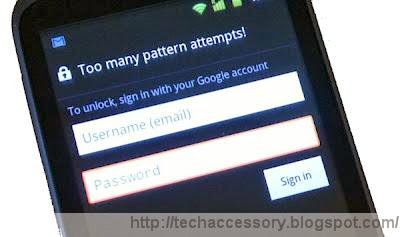
How To Unlock and Reset Android Pattern Lock

Hi, everyone, These days everyone is calling Android as a game changer for Smartphone technology. Now most of Smartphones are Android. Smartphone are not just a phone, it's a part of life also. That's why people wanna use their android privately. One of the most common privacy option Android is Pattern lock. But it's not good enough for privacy. People keep changing pattern and sometime forgets. If you are one of them, listen to me. I will show you How To Unlock and Reset Android Pattern Lock?

There are two way unlock your android:
  1. Simple and easy way
  2. Hard and tricky way.

Simple way:

***Your phone must be SYNC with Google Account***

  • Go to gmail
  • Follow their instructions
  • Unlock your device

Hard and tricky way:

*** If your Android is not Sync with Google account***
  • Turn off your phone
  • Press Power key+ Volume Up key+ home key together
  • A screen will appear
  • Tap on Restore Factory Defaults.
  • Reboot your system
  • Then your phone will open without any lock
 These ways are proven and totally easy. I hope you can reset of unlock your device using this tricks. Stay connected with TechAccessory.

How To Convert pdf To Word

Hello everyone, welcome here. Now I am going to share the ways to convert pdf to word. PDF and word, both are very common between us. What if a reason comes, you have to convert PDF to word, but, you don't know how to do that? Don't worry. I am going to tell you How To Convert pdf To Word:

There are so many ways to convert pdf to word. I will discuss about the best methods:

1. Adobe Acrobat:

  • Open Adobe Acrobat reader
  • Click file > open > browse the file> select the file > open
  • As the file opens Click file > Save as > Change format to Microsoft Word Document > Save
  • or, Click  File > Export > Microsoft Word Document > save

2. Convert PDF online:

  • Search google for free PDF converter website
  • Select a site
  • Upload your PDF there
  • Write your email address (if required)
  • Prove that you are human
  • Wait for the download

3. Use Converter program:

  • Download PDF to Word converter program (ex: istonesoft)
  • Install on your computer
  • Browse your PDF
  • Go option and select convert
  • Select output format as Word Document
  • Click Start/ convert etc.
These are the easiest way to convert your PDF to word. I hope you can convert easily with my instructions. Thank you. Stay connected with TechAccessory for more online related news and tricks.

Monday, April 7, 2014

How To Download Torrent File With IDM

Welcome To TechAccessory. Now I am going to share a very important trick How To Download Torrent File With IDM?

Let me tell you why should you use IDM to download torrent file?

  • IDM offers maximum download speed
  • You don't need to think about torrent's health
  • Torrent is banned in some places
  • IDM accelerates download speed 5 times faster that torrent
  • Schedule your downloads as you need
Best ways to download Torrent via IDM:

Zbigz Torrent to IDM Downloader:

  1. Go to zbigz.com
  2. Sigh up then you will be on the homepage
  3. Upload your torrent files
  4. Click go
  5. Choose free options
  6. Select zip
  7. Then Click Here To Download Button will start download in full speed

Putdrive.Com:

  1. Go to putdrive.com
  2. Sign up there
  3. Upload your torrent file
  4. Then click next to proceed to download

PCCloud.com:

  1. Go to pccloud.com
  2. Sign up and make your cloud ready
  3. you can collect your file online
  4. It offers 10 GB for free

Boxopus.com:

  1. Go to boxopus..com
  2. Sign up and load torrent file
  3. Start the download

Furk.net:

  1. Go to furk.net and signup
  2. Follow their instruction it's easy

Others:

You can also try following sites. It's easy and similar as shown above.
  • Bytebx.com
  • Filestream.me
  • Bruzzy.com
  • Btcloud.io
  • Torrent2exe.com
I hope you like this post. Thank you. 

How To Change Your Facebook Name After Limit Reached?

Hello everyone, Welcome to TechAccessory. These days, It's hard to find someone who doesn't have any Facebook id? It's true Facebook is very user friendly, but it has some limitations. You can't change your Username more than a time, you can't change your name more than 5 times and so many things. Username doesn't matter, Profile Name is really important. Some people change their  Profile Name many times and then cry. These days, many Facebook users don't user their real name. Some people use names like Innocent girl, Sparkle angel and so many. It's totally against Facebook policy. If you crossed the limit and interested to put your Real name on your Facebook, I can be your guide. Let see "How To Change Your Facebook Name After Limit Reached?"

*** This time you have to prove yourself and your name***
The process is easy, but Facebook will ask verification. You can verify yourself with the following things:

  • National ID card
  • College ID card
  • Driving license
  • Marriage certificate
  • Birth certificate
  • Green card
  • Voter ID Card
  • The official Name Change Paperwork
  • Check
  • Credit card, etc
You will need a Scan copy or a clear photo of these to verify yourself. If you can arrange these you can move forward. Then you have to follow the link below.

Click Here

It'll take you to the Facebook help page. Follow their Simple instruction to complete. If you can verify yourself, Facebook will Change your name. Sometime it take 4-5 days to complete verifications. If hope you like my post. Thank you.

How To boot Windows 7 and Windows 8 From USB?

Welcome to TechAccessory. Do you know it's possible to setup windows with a USB Pendrive? It's a simple and easy process. The best thing is installing windows with  USB is faster than Installing from DVD. It doesn't matter you use windows 7 or windows 8. Now, I am going to tell you How To boot Windows 7 and Windows 8 From USB?


Step 1: Boot your USB

  • Download and install PowerISO
  • Insert your USB device
  • Go to the tools menu and select Create Bootable USB drive
  • Click Continue
  • Press "..." button and open Windows 7 or Windows 8 ISO file
  • Select USB drive as Destination USB Drive
  • Click Start to create Win 7/8 USB drive

Step 2: Configure the BIOS and Install Windows 7/8

  • Restart your computer
  • Before windows 7 starts, Go to boot menu.
  • Select USB drive as Primary Boot option
  • Save changes and Exit.
  • Then Your USB will behave like your windows OS setup disk.
  • Now complete your Windows installation properly. How to install windows 7
That's all. Hope you find what are you looking for. You can also try these programs: Win To Flash ,UNetBootin etc. I hope this post will help you. If you have any question, comment here.

How To Optimize Windows 7

Windows 7: Most popular OS of the world. I don't have to tell you what is Windows 7 or Why people use windows 7? It'll be a waste of your time. Let's talk about the topic. How To Optimize Windows 7- In this blog post I am going to tell you some way to optimize windows 7 for better performance. Sometime computer  go slower for so many software installed and for so many processes running all the time. I will show you the solutions.


  • Restart: Don't keep using your computer continuously. Atleast restart your system once per week
  • Limit the running softwares: When your computer becomes slower go to task manager and end some process
  • Boost your computer's memory with readyboost: Attach a USB Flash drive > then autoplay will appear > Select Speed Up My System .> Select ReadyBoost > Click the Radio button. Click Apply and OK to finish.
  • Uninstall programs that you don't use: It's a great idea to uninstall all those apps that you don't use. For this go to control pannel and find Programs and features or Uninstall. Click there and Select the application to uninstall.
  • Windows 7 Performance Troubleshooter: Go to Control pannel > select troubleshooting > Check performance issue. Follow prompts to optimize performance
  • Disk Defragment: Fragmentation occurs when your computer does not have enough space. It can be fixed by Defragment. Go to Control Pannel > Search Defragment and Select > Choose disk where you need to perform defragment > Click Analyze disk > Finally Click "Defragment Disk".
  • Disk Cleanup: In this process, you can clean unnecessary files. Go to Disk Cleanup at control pannel > Choose drive > Press ok > Make the type of file you need to remove and press ok > Click Delete files.
Follow this. Your computer will always run very fast. These works are simple and don't take so much time. If you have any suggestion about this, please comment here.  Thank you.