Showing posts with label Android. Show all posts

Tuesday, May 5, 2015

How to Display/Mirror Android Screen On PC (No root)

Display Your Android Screen On PC- In this video you'll learn how to mirror your samsung android screen on PC/Mac.


Official Screen Mirroring System by Samsung: To display your android screen on PC wirelessly, Samsung offers you an official android app "Sidesync"

NO ROOT access needed- You don't need to root your devic for mirroring android screen.

Display Android Screen on PC Wirelessly- Now you can Display Android Screen On PC wirelessly. All you need is Wi-Fi

You can also share your android screen using USB.

Monday, April 28, 2014

How To Block Ads On Android Phone Without Root

Dear Android Users, Welcome to TechAccessory. This is the era of technology and it's also the era of Ads also. These days most of the site's have ads showing even the Android apps. In Computer we can try the Adblock extension, which is available for almost every browser. Android is a smaller device. It's really frustrating when add appears in the small screen.

There are so many apps which will make your device ad free. But this device will ask you to root your device. If you don't wanna root your device, I am here to tell you the way to block ads on android phone without root. All you need to do is follow my instructions:

How To Block Ads On Android Phone (Without Root):

  1. Download Adblock Plus. (Adblock plus is banned from Google Playstore)
  2. Install the app successfully
  3. Open the app
  4. Now you have to create a filter list. For this you have to click on Filter Subscriptions
  5. Then, Create your list
  6. Now Click on OK
  7. Done !!! This app will work on background and filter ads.
That's all. Follow these steps if you need to block ads on android phone. Thank you.

Sunday, April 27, 2014

How To Speed Up An Android Smartphone Without Rooting (Need Five Minutes Only)

Dear Android users. Welcome to TechAccessory. Very glad to say that you are using one of the best OS for Smartphones and it's the most popular OS for android as well. Your Smartphone may be a small device, but this device's power is huge and it's infinitive. Sometimes the performance becomes low because it's mini hardware.
How To Speed Up An Android Smartphone Without Rooting (Need Five Minutes Only)

Usually these Smartphones have low memory. So you have to be careful about memory to get better speed. Now, I am going to tell you some ways to speed up an Android Smartphone.

You may find so many posts about this topic. The problem is they recommend you to root your device. Rooting your device is a great idea, but some people doesn't  wanna root their device. Root is not a too easy process for every device, sometime you can loose your phone's warranty just because of rooting. If you don't wanna root your your device, read this post very carefully. Here I am going to share you the way to speed up android device without rooting.

How To Speed Up An Android Smartphone Without Rooting (Need Five Minutes Only):

Cache cleaning:

Cache is one of the reasons of slowing down android device. You may use so many apps. The Android System keeps cache from the apps. These caches kill memory. So, the first thing you need to do is clean those caches. 
We have two ways to clean caches: Manually and Automatically (Need a cache cleaner app). For manual cleaning you have to go to the Settings menu and tap on Apps. Then you have to choose app and tap again. You will find a button Clean Cache. It's a slow process. For faster processing, you have to install App Cache Cleaner. This app has auto cache cleaning features and so many features. You can set the cleaning interval also. Click here to see more about the app.

Clean caches, it'll help to speed up an Android Smartphone.

Uninstall and disable unused apps:

You may have so many apps installed. But I am sure every app is not necessary. So uninstall those unused apps. If you don't wanna use any system app disable the app. If you have any app what is important to keep but you don't need regularly. Maybe you use this app once in a month, You can do one thing. You can backup your apps. I recommend Android Assistance to backup your app.
Do this. It'll speed up an Android Smartphone.

Use a light launcher:

Some android user installs some heavy launchers like Go TSF shell, Go launcher, Buzz Launcher, Next Launcher 3D. They are awesome for beautifications but it may slow down your device. You can try some light launchers like Smart Launcher 2, Dodol launcher etc. Using a light launcher may help you to speed up an Android Smartphone.

Remove Unnecessary Widgets:

Widgets are beautiful, but they are not necessary.Usually widgets are heavy, it shows down your android's speed. To speed up an Android Smartphone one must remove those unnecessary Widgets.

Disable Auto Sync: 

This may help you to speed up an Android Smartphone. Auto Sync slows down android device while sync. You can stop Auto sync from the Setting menu.


That's all. I hope this will help you to speed up your Android Smartphones.

Thursday, April 24, 2014

How To Control Android Phone From PC

Hello Android Users, Welcome to TechAccessory. Are you one of them, who spend whole day with computer? If your Answer is yes, Then this post is only for you. What if you can use your mobile via your computer? This will be very good for you because you can send SMSs, make calls with your PC.

Do you know how to control android phone from pc? I am here to tell you. Have a look:

What you will need?
  1. Android device
  2. A computer
  3. Playstore Account
  4. Wifi connection
  5. Web browser

How To Control Android Phone From PC?

Follow my step by step instructions:
  • First, Make all required things ready
  • Unlock your Android Phone.
  • Turn on Wifi
  • Go to Playstore and Search AirDroid
  • Install AirDroid
  • Open Airdroid on your phone
  • Sign up an acoount
  • Turn on your computer
  • Open your browser
  • Go to web.airdroid.com
  • Login your account
  • A pop up confirmation will appear on your phone's screen
  • Accept that.
  • Now, control your Android phone from your web browsers
What you can control with AirDroid:
  • Send, read and type SMS
  • Make any call
  • Reject any incoming calls
  • Manage your apps
  • Manage your contacts
  • Manage ringtones
  • Manage files
  • Use phone camera as webcam
  • Take screenshot
  • and much more
That'll all. Just follow my Step by Step instructions To Control Android Phone From PC.

How To Control Your Computer From Your Android Phone

Hello TechLovers, Welcome to TechAccessory. I am very excited, because now I am going to share you an amazing post. It's about android and it's about connecting your PC.

What kind of OS are you Using? Mac or a Windows? Anything you use, This post is for everyone. It's all about How to Control your computer From your Android Phone.

Now a days everyone has Smartphone. Smartphone must be smart. Smartphones like iPhone and Android Phone are too smart because they can control your computer completely. Wanna know how? Follow my Step-by-Step instructions:

How To Control Your Computer From Your Android Phone:

Things needed:
  1. Wifi Connections
  2. Computer (Mac/ Windows vista, 7,8)
  3. Android device
  4. Playstore Account

Now I am starting the operation: 

  • Make All this thing ready which are needed
  • First, Take your Android Phone
  • Connect your Android with WiFi
  • Go to PlayStore
  • Install Remote Mouse
  • Open the app
  • Now Turn on your computer
  • Open any of your web browsers and Go to www,remotemouse.net
  • Download Remote Mouse Program for your Computer
  • As download Completes, Install the program
  • Run the Program
  • Now Change your setting from Android device
  • Then you Tap START
  • Now you can control your Computer with your Android. It works like a virtual Touchpad
How you operate:
  1. Single Tap = Left click
  2. Double tab = Right Click
  3. Two Finger Swipe Up/down = Scroll Screen Up/down
  4. Two Finger Swipe Right/left = Scroll Screen Right/left
  5. Swipe with single finger = Move your cursor
It's very easy. Try it right now because it's fun to Control Your Computer From Your Android Phone. Thank you for your valuable time.

Sunday, April 13, 2014

How to Root an Android Phone For Free

Welcome to TechAccessory. This post is specially for Android users. Are you thinking about rooting your device? Rooting your phone will break all the restrictions, be the real administrator of your Android device. A rooted android user can full access on his phone's system apps. Your phone will operate as your directions, not as the phone's default setting. Rooting is not necessary, It's up to you if you need full control of your phone or not. Now let me tell you "How to Root an Android Phone For Free":

Requirements:

  1. Android device (Phone or tab)
  2. A computer
  3. USB cable
  4. Driver of your phone

How to Root an Android Phone For Free:

  • First, get all the things required
  • Check your phone's battery
  • Make sure your phone's charge is more than 80%, otherwise charge your phone
  • Go to play store
  • Search and install UnlockRoot pro
  • Make sure the app compatible with your phone
  • Connect your device and Computer via USB Cable
  • If you don't have driver of your phone, download that. Make sure that driver is exactly for your phone. Usually most phone install driver as USB connected with computer
  • Run UnlockRoot Pro
  • Select your phone and press Root button
  • Root process will start immediately
  • Follow the instructions
  • It'll put you in download mode, It will reboot several times
  • After reboot, you will see a progress bar
  • As the root process finishes, you will get a root confirmation message
  • That's all
These are the step by step root process. It's easy and totally safe. Don't think much, do is right now. If you have any question around this let us know.

Tuesday, April 8, 2014

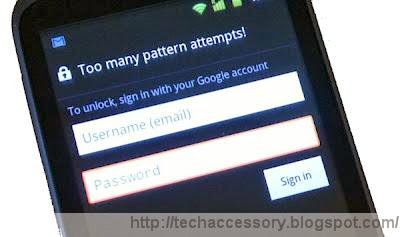
How To Unlock and Reset Android Pattern Lock

Hi, everyone, These days everyone is calling Android as a game changer for Smartphone technology. Now most of Smartphones are Android. Smartphone are not just a phone, it's a part of life also. That's why people wanna use their android privately. One of the most common privacy option Android is Pattern lock. But it's not good enough for privacy. People keep changing pattern and sometime forgets. If you are one of them, listen to me. I will show you How To Unlock and Reset Android Pattern Lock?

There are two way unlock your android:
  1. Simple and easy way
  2. Hard and tricky way.

Simple way:

***Your phone must be SYNC with Google Account***

  • Go to gmail
  • Follow their instructions
  • Unlock your device

Hard and tricky way:

*** If your Android is not Sync with Google account***
  • Turn off your phone
  • Press Power key+ Volume Up key+ home key together
  • A screen will appear
  • Tap on Restore Factory Defaults.
  • Reboot your system
  • Then your phone will open without any lock
 These ways are proven and totally easy. I hope you can reset of unlock your device using this tricks. Stay connected with TechAccessory.

Sunday, April 6, 2014

How To Recover Deleted Text Messages From Android and iPhone?

Guys, Welcome to TechAccessory. I am very happy to write this post because, I know how much pain it gives when your important and sweet message are deleted unfortunately or by mistake. But, I am happy now because I have recovered those messages. Now I am going to tell you how I recovered. Let me tell you How To Recover Deleted Text Messages From Android and iPhone?

 How To Recover Deleted Text Messages From Android?

As most people use Android Smartphones, I am going to tell How to Recover Deleted Text Messages From Android first. You will need a recovery app for that. There are so many Computer based tools for this operation. The apps you can use:
  • Download one of those programs and install on your computer
  • Now connect your Android Phone with your USB cable
  • The next step is Enabling USB Debugging. Don't know how to do? I am telling you, Go to setting and find developer options. You will find USB Debugging.
  • Then follow prompts to scan and analyze memory
  • Now you can browse recoverable data
  • Select which message you need to recover
  • After recovering you got your back :).

 How To Recover Deleted Text Messages From iPhone?

If you use an iPhone and your data lost, you can recover this. I will tell you  "How To Recover Deleted Text Messages From iPhone". You will need a software, which has both Mac and Windows version.

iPhone Data Recovery

Follow this:
  • 1st download and install the program
  • Connect your iPhone to computer
  • Then, you will find an interface, click Start Scan
  • Now hold your phone and click start
  • Now press the Home and Power button together for 10 seconds
  • Now release the power button and but keep pressing home button for another 15 second
  • The app will start scanning immediately
  • Now you can preview memory files
  • Select Messages and click recover
That's all. It's easy, but working. I hope you will understand my instruction. Thank you.